Bullpen help
Set it up yourself, in about 10 minutes
Every screen, with a picture and the exact buttons to tap. No call needed. If you get stuck anyway, open the app and tap Ask Bullwick: he answers in plain words and takes you to the right screen.

Bullwick here. A few steps and you're set.
Your Home screen shows the same steps as a Get set up card. Each one checks itself off as you go. Do them in order and the whole thing takes about ten minutes.
Getting in
Your welcome email has a button that says Pick my password and open Bullpen. Tap it, pick a password, and you're in. Log in with the same email the welcome went to. The link is good for 7 days; if it has expired, tap Forgot your password? on the login page and a new one arrives in a minute.
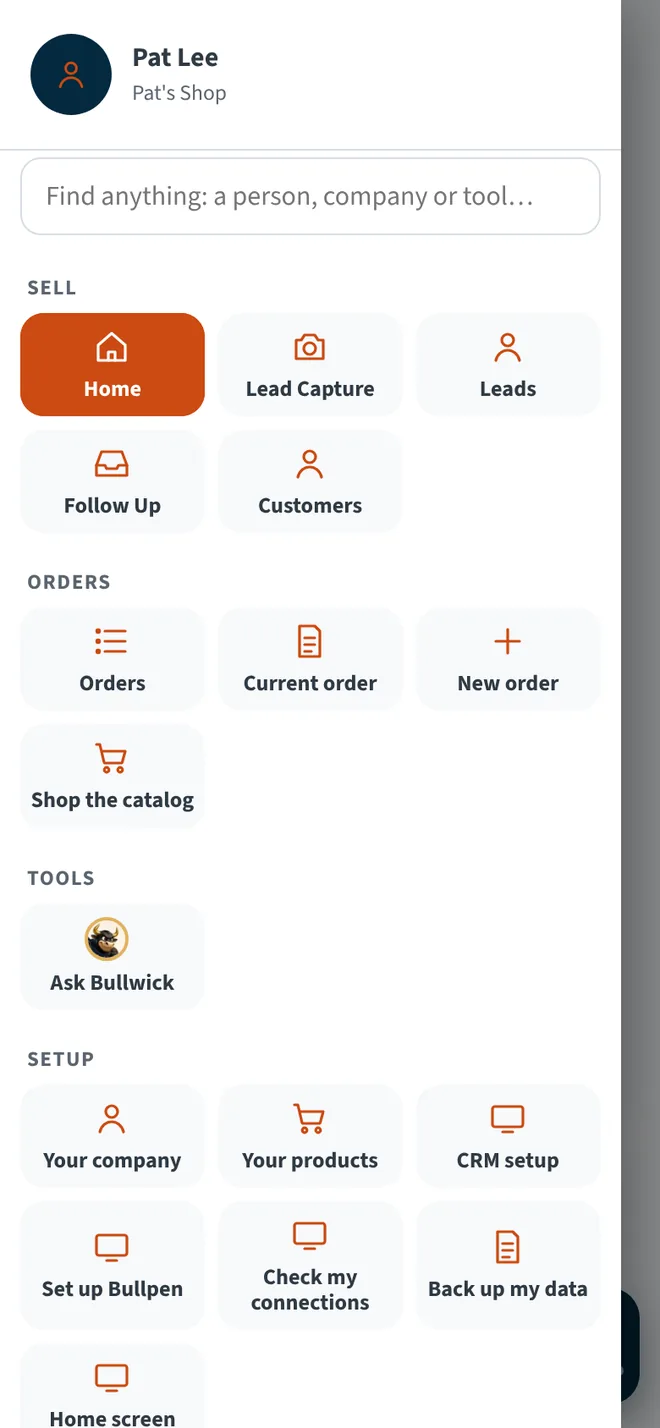
Once you're in, Home shows the Get set up card. Tap any step and Bullwick takes you to its screen. Hide it any time; it lives under Menu › Set up Bullpen after that.
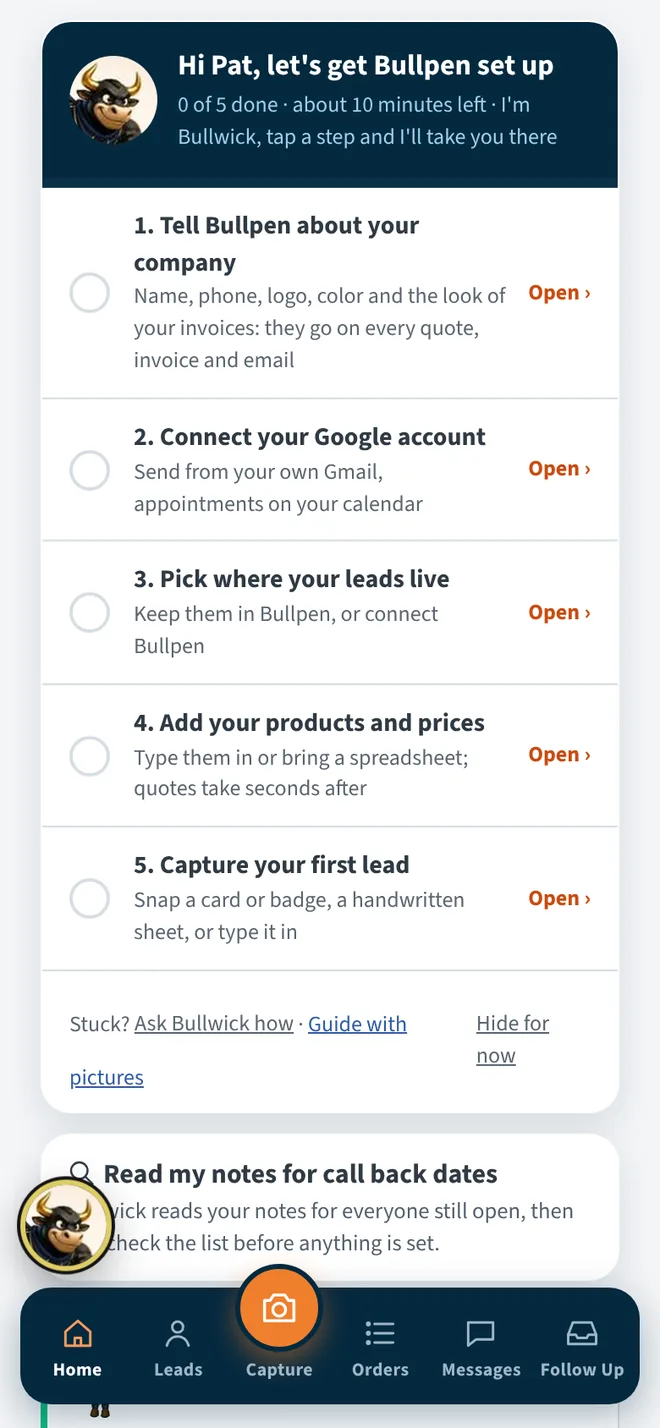
1Bring in your price sheet
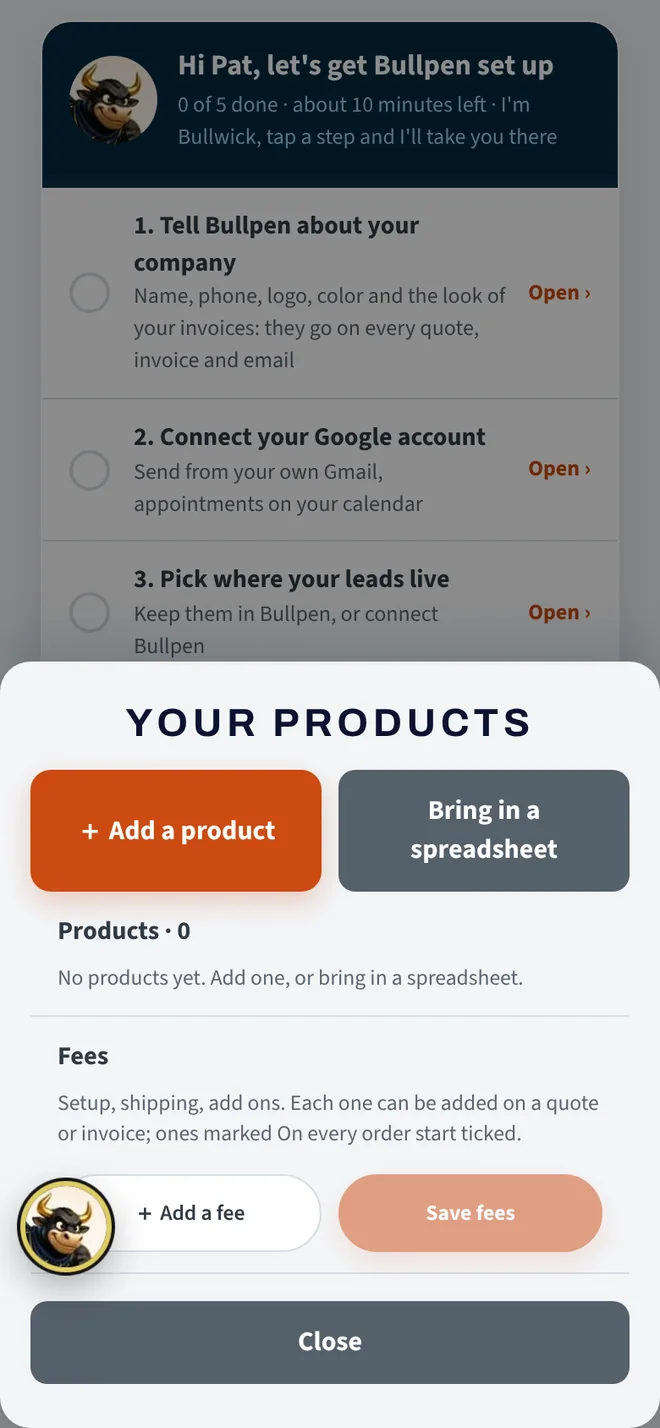
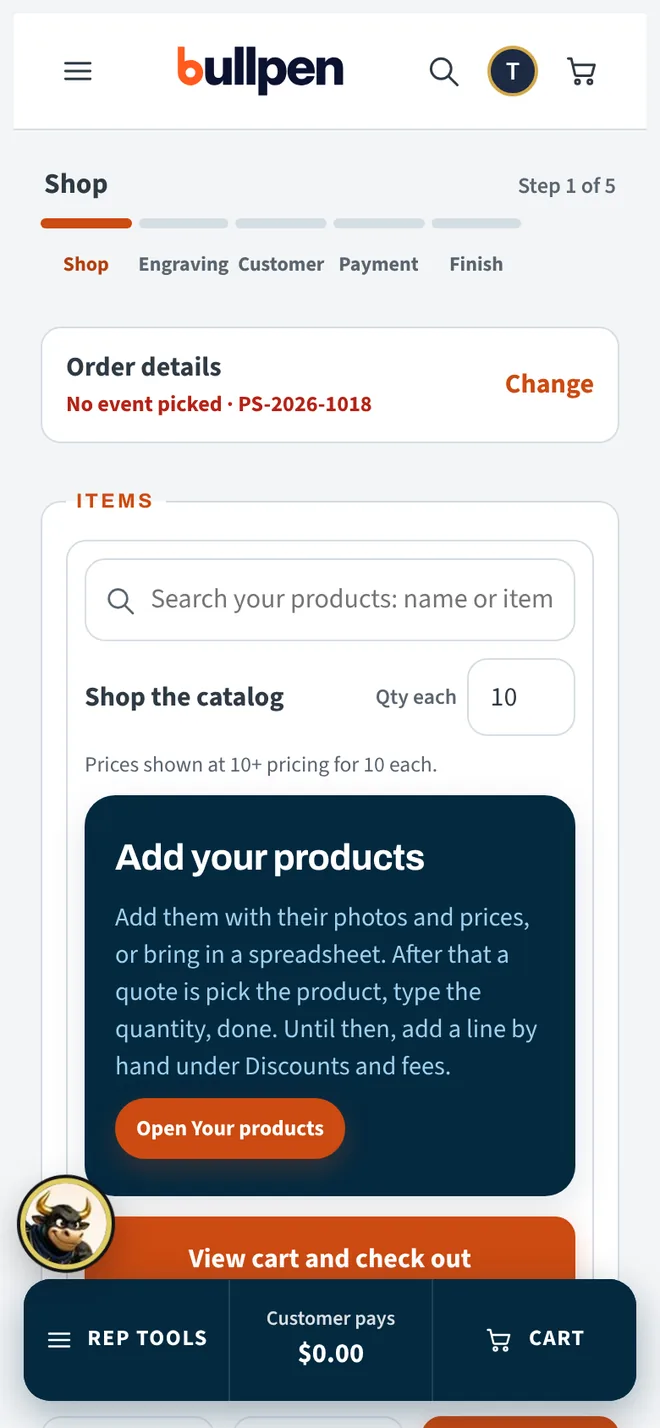
Start here, it is the step that pays. With your products in, a quote is: pick the product, type the quantity, done. Bring in the price list you already have, or add products one at a time.
- Tap Menu, then Your products, then Bring in a spreadsheet.
- Have a PDF price sheet? Tap Let AI read your price sheet and pick the PDF or photos of the pages. AI fills in the rows, you check them and tap Add them. This is an add-on, included with Premium.
- Have a spreadsheet? Paste the rows or pick the CSV file. Bullpen reads the name, price and item number columns.
- Or tap Add a product: name, price and a photo. Add quantity price breaks if you give them (for example 1 to 24 at one price, 25 and up at another).
- Your fees (setup, rush, shipping) live on the same screen under Fees. Ones marked On every order start ticked on each quote.
- Prices in Google? Paste the link under Or paste a Google link and tap Bring it in: a Google Sheet comes in as rows to check, a PDF in Google Drive goes to the price sheet reader. Share it as Anyone with the link, or connect your Google account first.
2Quote someone in 20 seconds
Make one quote now, before anything else, so you see what Bullpen does for you. Your name, logo and look go on it as soon as step 3 is done.
- Tap Menu, then New order.
- Type the customer's name and company, or pick one of your leads.
- Tap Add a product, pick one, type the quantity. Add more lines the same way.
- Tap Send the quote to see the PDF. Email it from your Gmail once Google is connected, or save it for now.
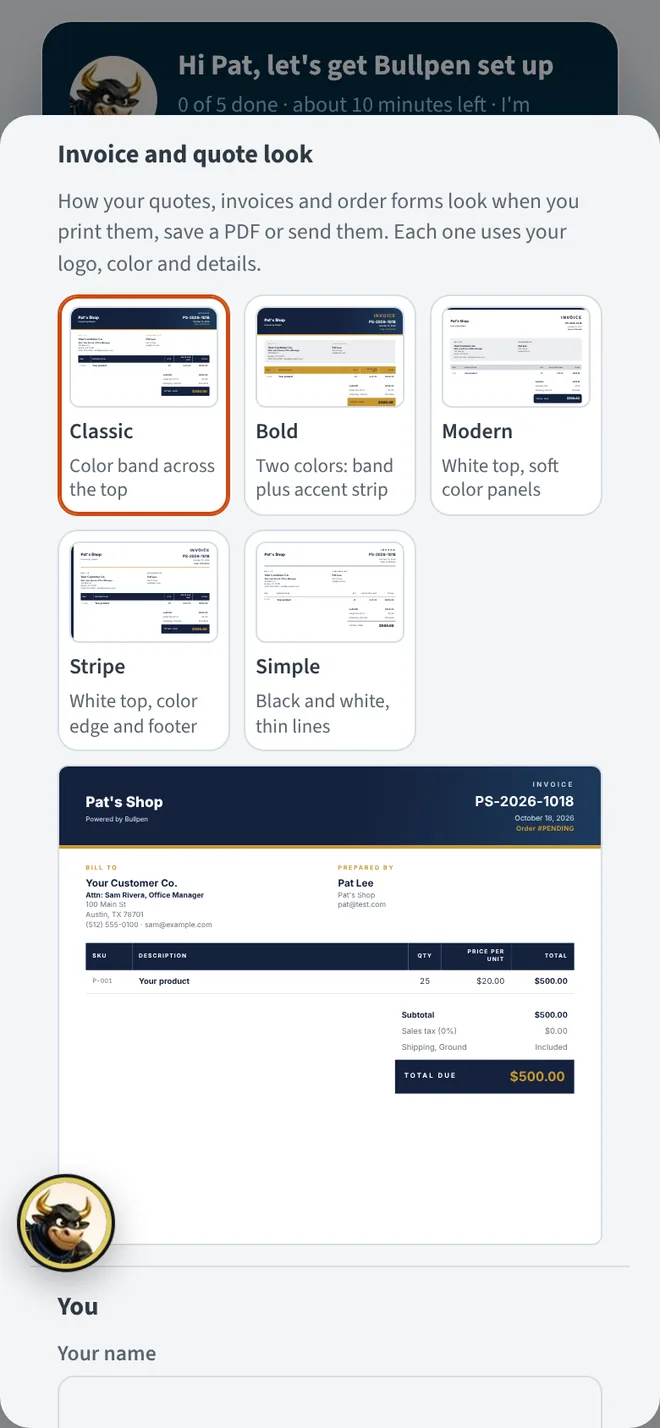
3Tell Bullpen about your company
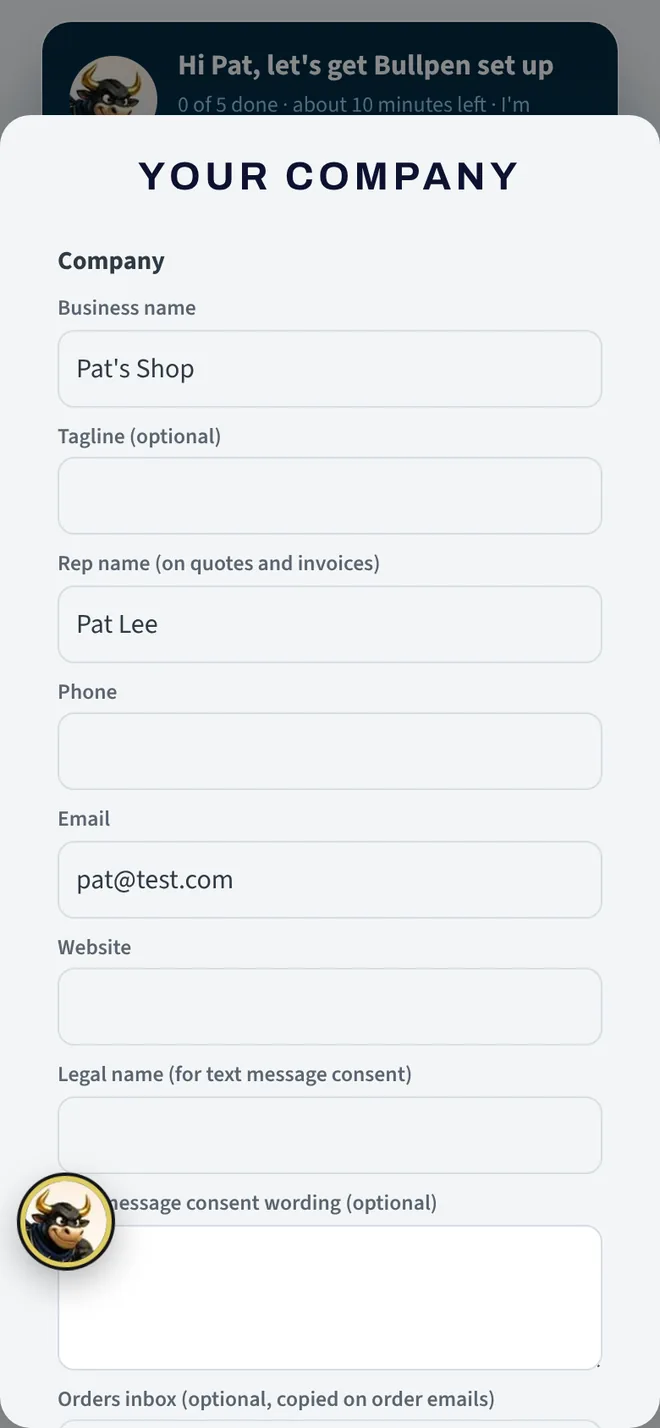
Your business name, your name, phone, logo and color go on every quote, invoice and email, so customers see you, not a blank form. About 2 minutes.
- Tap Menu (the three lines, top left), then Your company.
- Fill in your Business name, the Rep name that goes on quotes, your Phone and Email. Add What you sell in a few words: your first emails use it.
- Under Logo, tap the file button and pick your logo. A PNG with a clear background looks best. Tick Use this color under Main color and pick your brand color. Has your brand a second color? Tick it under Accent color too: it goes on totals, headings and the line under the header.
- Under Invoice and quote look, tap one of the five looks: Classic, Bold, Modern, Stripe or Simple. The previews show your own logo, colors and details.
- Tap Save. Your quotes and invoices take on your name, logo and look right away.
Tip: the sales tax rate and the terms on your invoices live on the same screen, further down. Set them once and every invoice gets them.
Yours to use: upload only a logo, price list and photos you have the right to use. They are yours and your responsibility (Terms).
4Connect your Google account
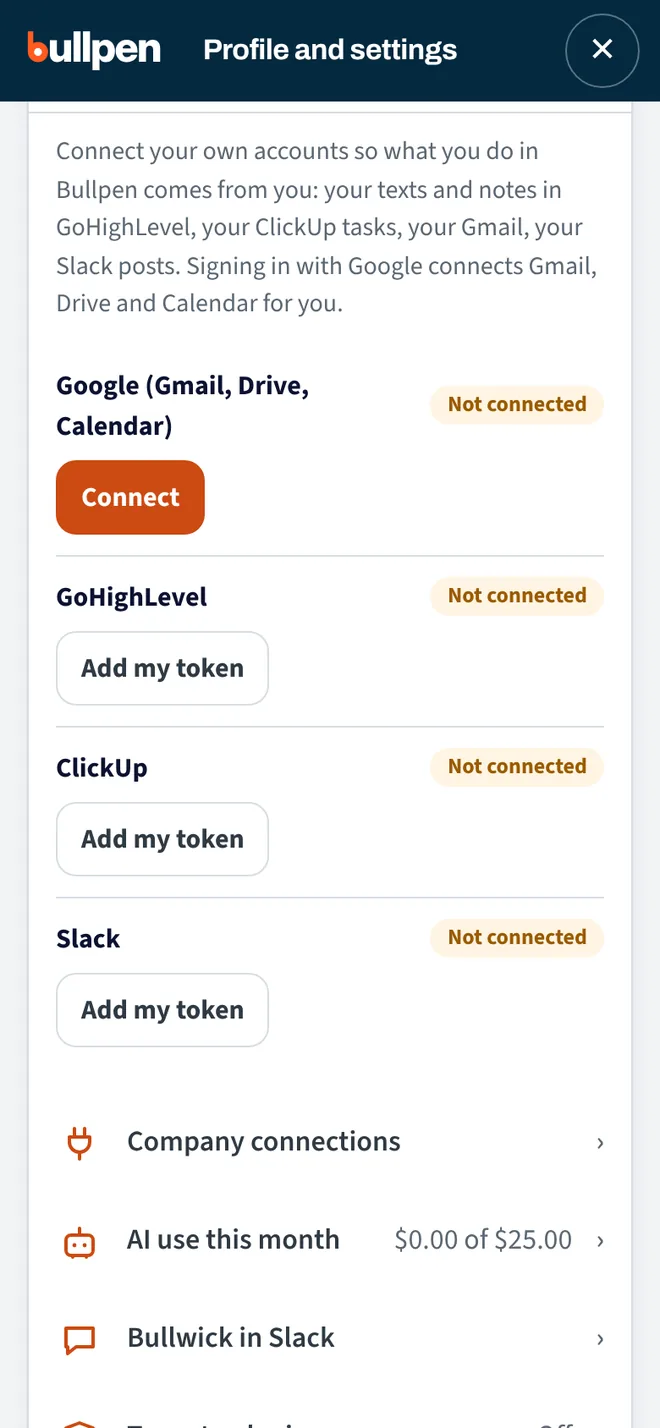
One sign in turns on three things: emails go out from your own Gmail, appointments land on your Google Calendar, and each order gets a folder in your Drive. Bullpen only sends what you tap Send on. Nothing goes out on its own.
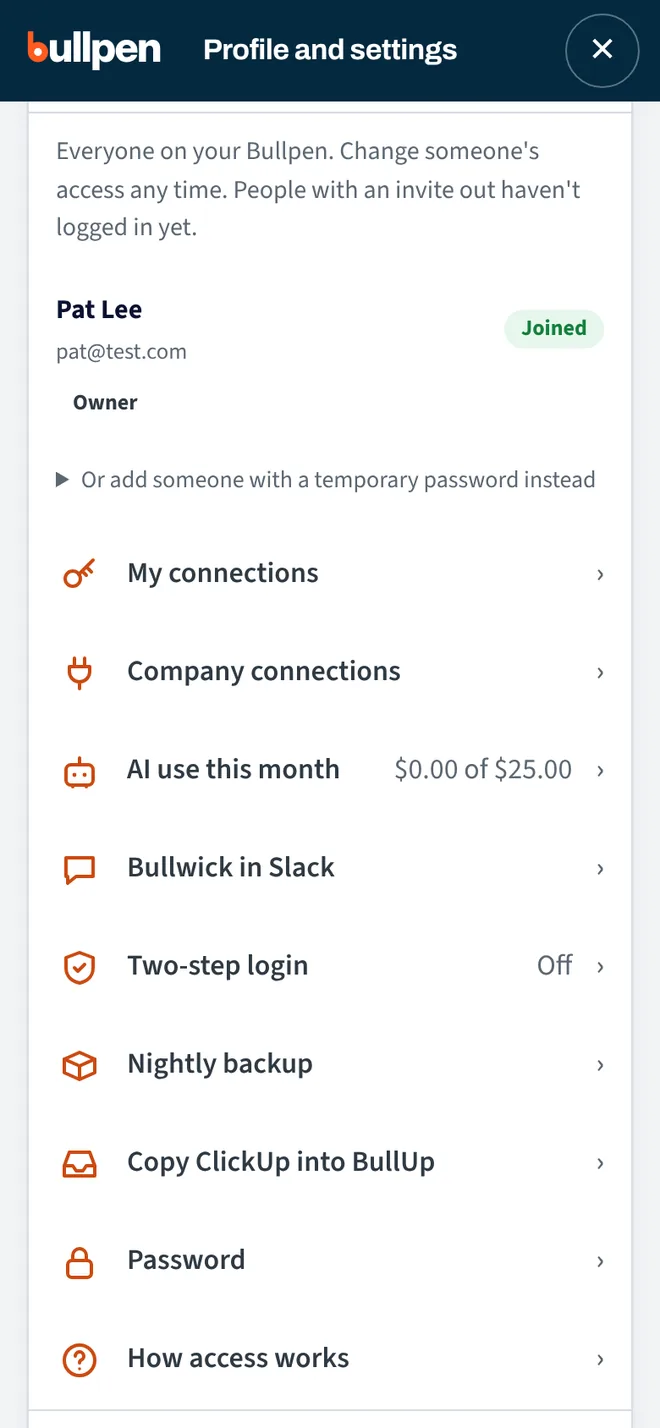
- Tap Menu, then your name at the top (Profile and settings).
- Open My connections and tap Connect next to Google (Gmail, Drive, Calendar).
- Sign in to the Google account you send email from and tap Allow. Google lists what Bullpen asks for: send and read your mail so replies show up, see and add calendar events, and make folders in Drive.
- You land back in Bullpen with Google marked Connected. From then on the email composer shows Send from Gmail.
Tip: every teammate connects their own Google account the same way, so their emails come from them. You can disconnect any time with Disconnect mine on the same screen.
5Pick where your leads live
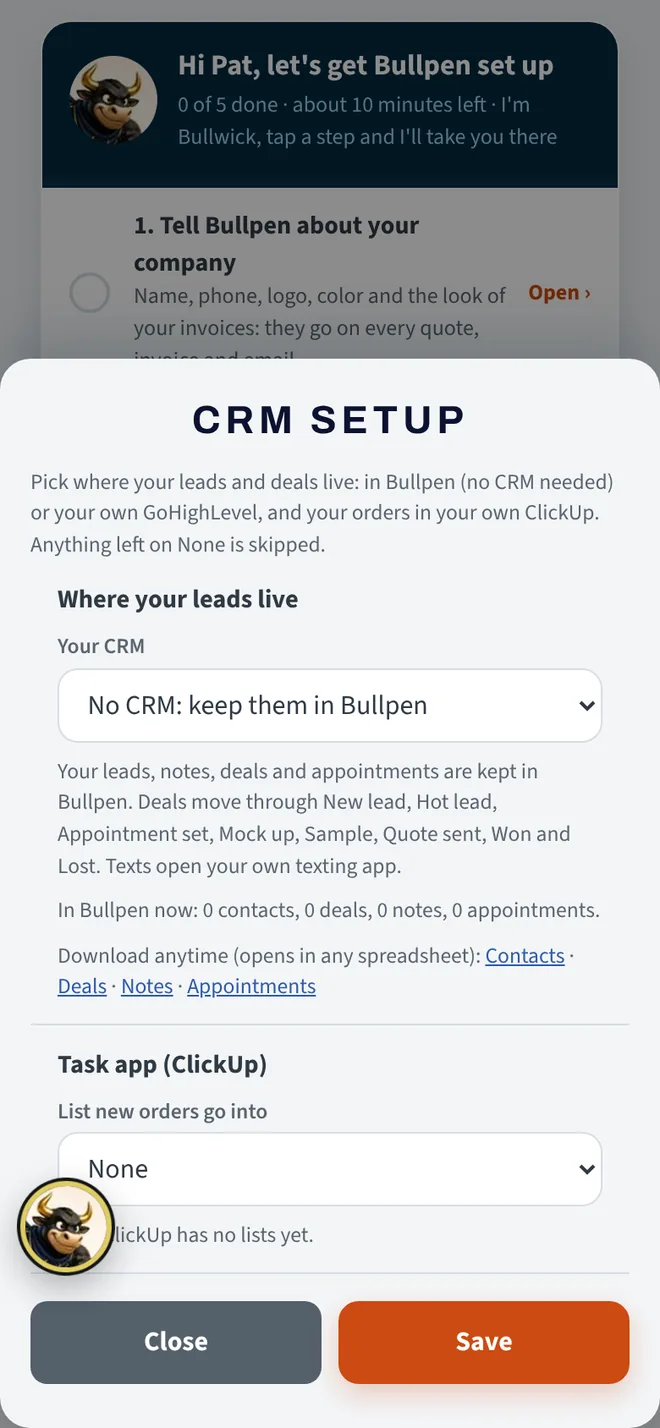
You don't need a CRM to use Bullpen. With No CRM, your leads, notes, deals and appointments live in Bullpen, and you can download them any time as a spreadsheet. Already on GoHighLevel? Connect it and Bullpen works on top of it: leads, notes, call outcomes and deals are written there, so your CRM stays the record.
- Tap Menu, then CRM setup.
- Under Where your leads live, pick No CRM: keep them in Bullpen, or My GoHighLevel.
- GoHighLevel only: connect it first under Profile and settings › My connections › GoHighLevel › Add my token, then come back and pick your pipeline, the stages Bullpen moves deals through, and your booking calendar.
- Tap Save. Switching reloads the app once.
No CRM means no lock in. Deals move through New lead, Hot lead, Appointment set, Mock up, Sample, Quote sent, Won and Lost. The Download anytime links on this screen give you Contacts, Deals, Notes and Appointments as files that open in any spreadsheet.
On GoHighLevel? Two full guides with pictures (Oct 26): 1. Connect your GoHighLevel (about 10 minutes) and 2. Set up your pipeline, your leads and Follow Up (about 45 minutes): the six stages and what each means, show tags with the year, past clients, Tidy up, bringing in a list, and the daily routine.
6Upload the leads you already have
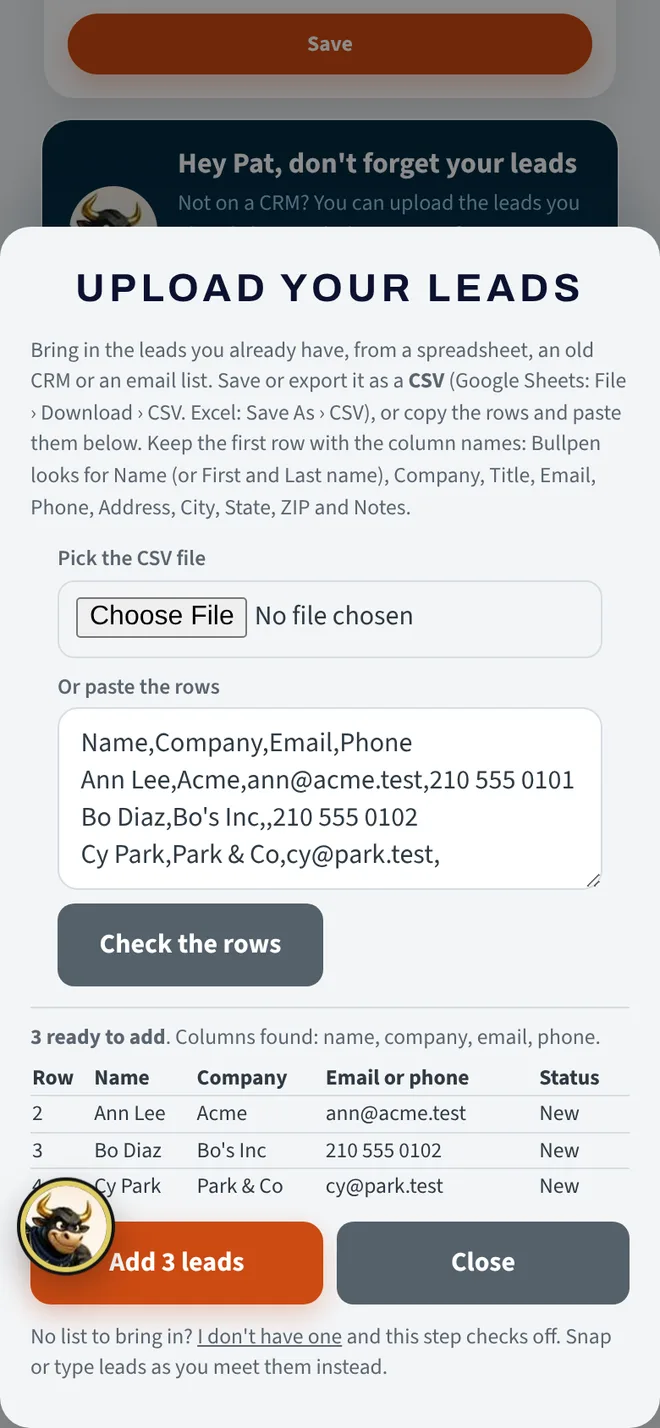
Keeping your leads in Bullpen instead of a CRM? Bring in the list you already have, from a spreadsheet, an old CRM or an email list. (On GoHighLevel? Your list already lives there, so skip this step.)
- Save or export your list as a CSV. Google Sheets: File › Download › CSV. Excel: Save As › CSV. Keep the first row with the column names.
- Tap Menu, then Upload leads (or Upload my leads on Bullwick's card on Home).
- Pick the CSV file, or copy the rows and paste them in, and tap Check the rows.
- Look over the preview: new people, anyone already in Bullpen (skipped), and rows with a problem. Tap Add.
Nobody twice. Bullpen matches on email and phone, so anyone already in is skipped and never changed. Columns it reads: Name (or First and Last name), Company, Title, Email, Phone, Address, City, State, ZIP and Notes. Up to 1,000 rows at a time. No list? Tap I don't have one and the step checks off.
7Capture your first lead
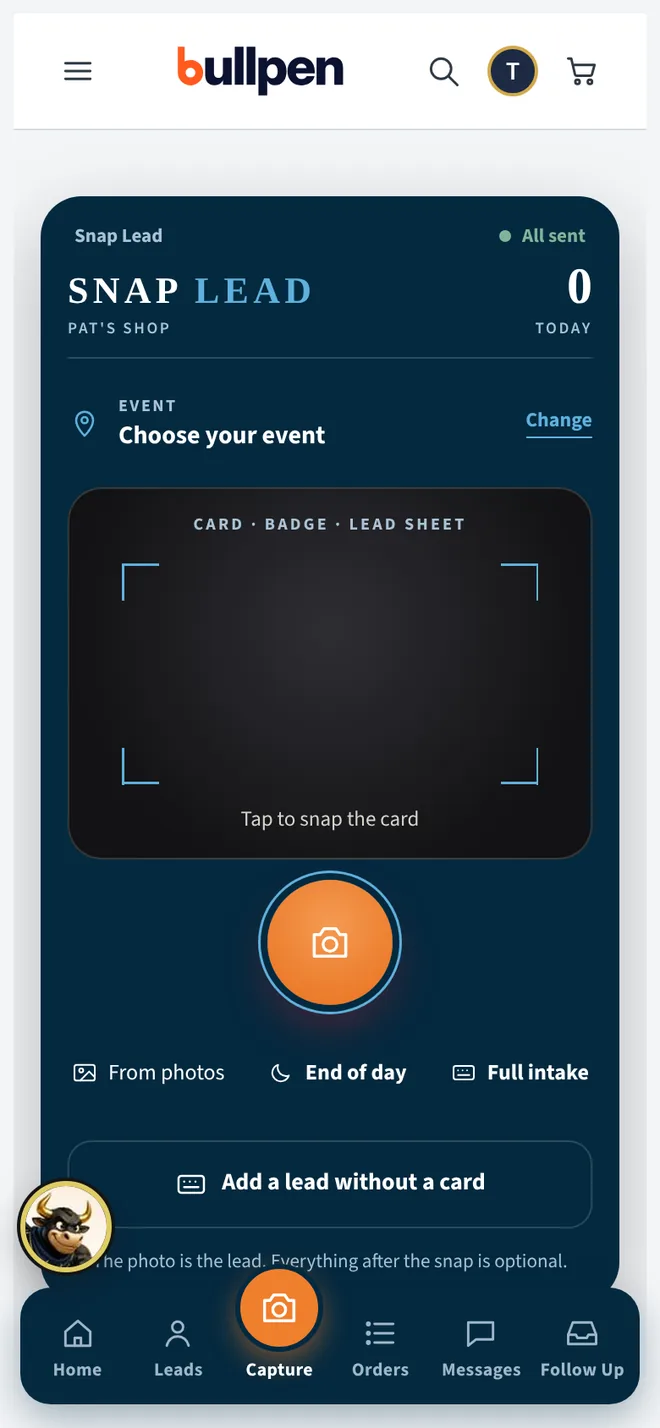
Every way in works: snap a business card or a badge, take a picture of a handwritten lead sheet, pick a photo you took earlier, or type the lead in.
- Tap the camera in the middle of the bottom bar.
- Point it at the business card or badge and tap the shutter. Bullpen reads the name, company, phone and email.
- Check the details, add a note about what they want, and tap Save.
- They show up on Follow Up with the next step already set, and on Leads with their stars and rank.
Tip: no card? Tap Add a lead without a card and type it, or hand them your phone to fill in. Paper lead sheets: one photo per filled in sheet, and the handwriting is read into a lead.
Put Bullpen on your phone
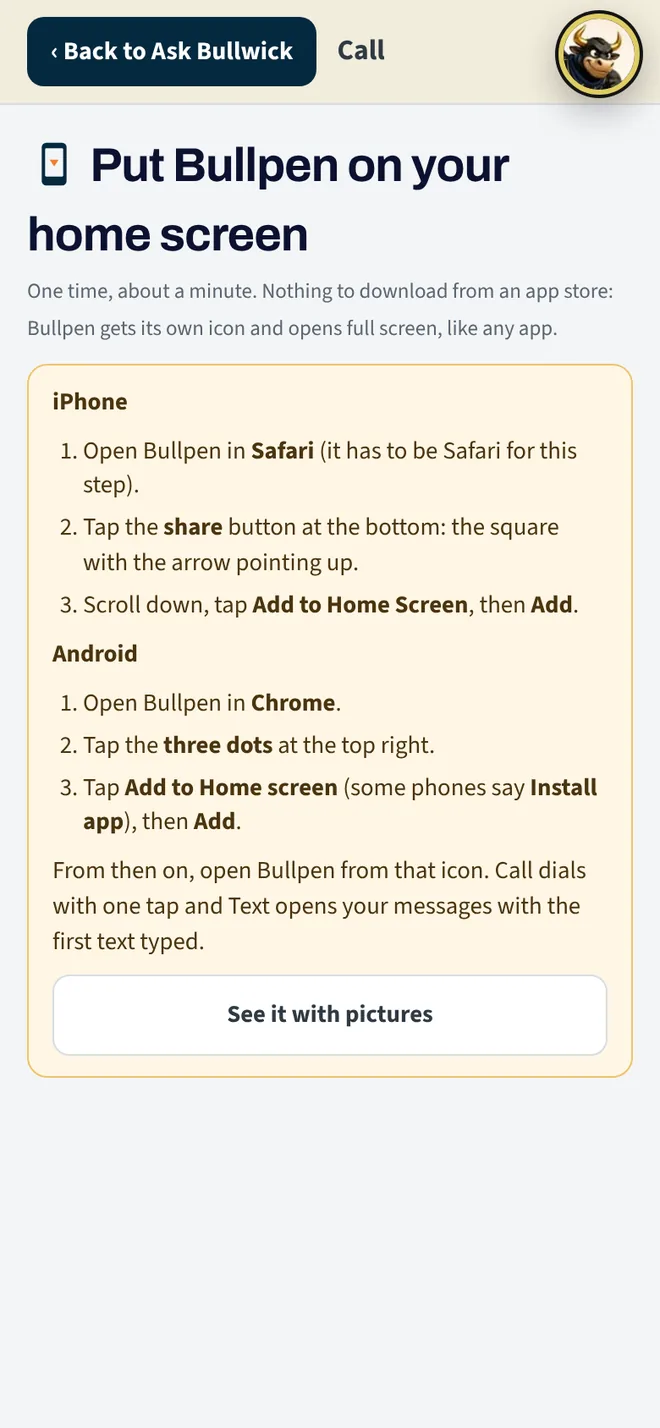
There is nothing to download from an app store. Bullpen gets its own icon on your home screen and opens full screen, like any app. One time, about a minute.
iPhone
- Open Bullpen in Safari (it has to be Safari for this step).
- Tap the share button at the bottom: the square with the arrow pointing up.
- Scroll down and tap Add to Home Screen, then Add.
Android
- Open Bullpen in Chrome.
- Tap the three dots at the top right.
- Tap Add to Home screen (on some phones it says Install app), then Add.
From then on, open Bullpen from that icon. Call dials with one tap and Text opens your messages with the first text already typed. It works on a laptop too: same address, same login.
Add your team
Each teammate gets their own login and their own connections, so their emails come from them and you can see who did what.
- Tap Menu, then your name at the top (Profile and settings).
- Tap Invite someone. Type their name and email and pick an access level: Manager (everything, can invite others), Full app, Caller (calls and follow ups only) or Rep.
- Tap Send the invite. They get a branded email with a link, tap it, pick a password, and they're in. If their email didn't arrive, the same screen shows their link so you can text it to them.
- Change anyone's access or remove them any time under Team on the same screen.
How many logins? Free is 1 login. The paid plans include more, and extra logins can be added. The pricing section has the current numbers.
Every day
The daily follow up, step by step with pictures: Your daily follow up.
Home: your next best move
Home opens on the one thing to do right now, then your goal rings for calls, texts and notes. Power Hour runs a 60 minute call sprint. Wrap my day picks tomorrow's first three calls.
Follow Up: who to call first
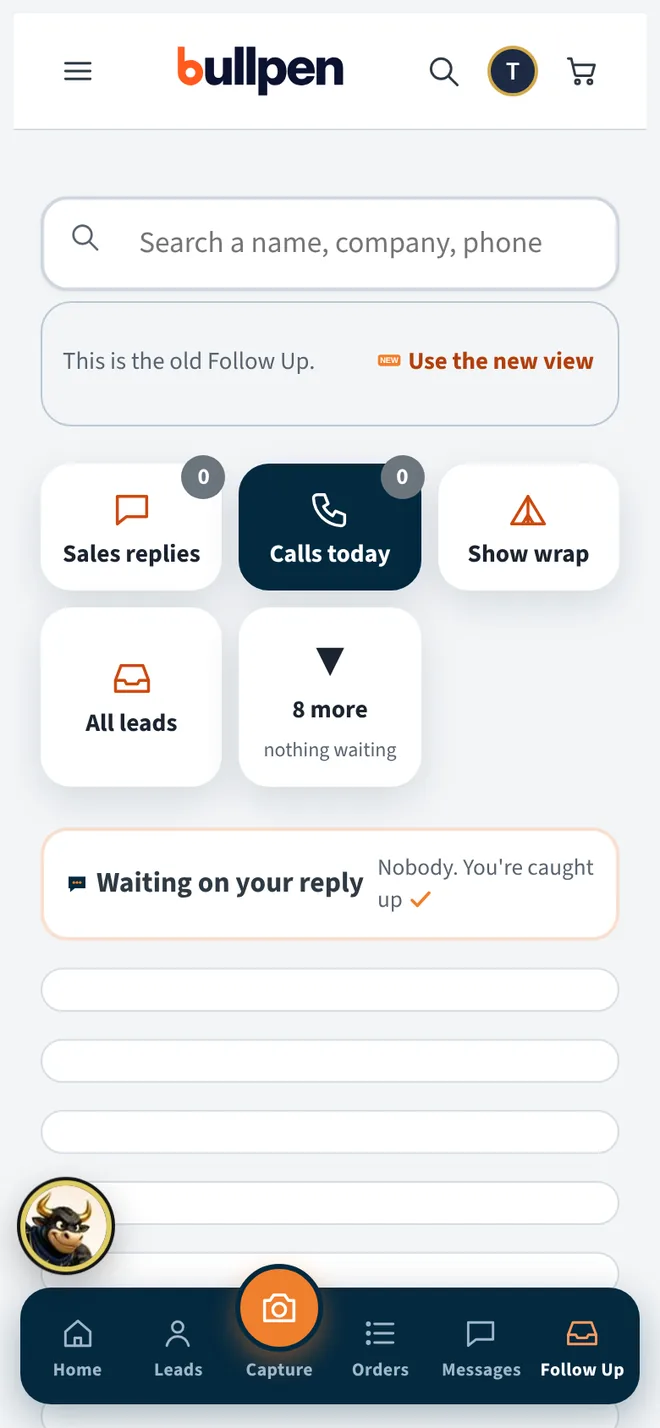
Every follow up you owe, sorted into piles: met today, big deals, quotes out, samples, reorders due. Tap Who's next to go one person at a time, best first, with the Call button right there and the text already written.
Quotes and invoices
Tap New order, pick the customer, add products and quantities. Send the quote emails a branded PDF from your Gmail. Turn it into an invoice with one tap when they say yes.
Receipts
Sold on paper or in your supplier's system? Tap Snap an order receipt on the Lead Capture screen, take a photo of the receipt, check what was read, and the customer and their order are recorded for you. This is an add-on, included with Premium.
Mock-ups: their logo on your products
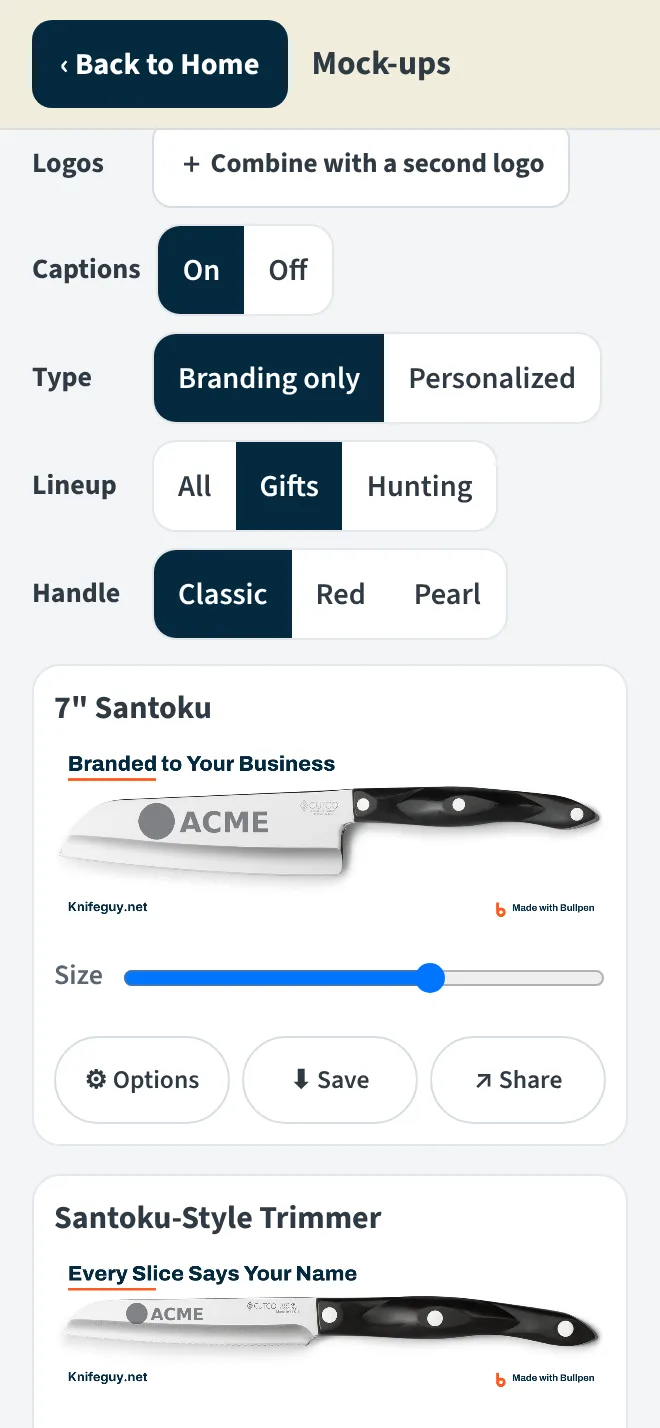
Menu › Tools › Mock-ups, or tap 🎨 Mock-ups on a person's page. Type their website and tap Find logo: their logo lands on every product at once, engraved. Or upload it, take a picture of it, or paste it. Switch the product color, go Personalized to show a person's name on the front and their logo on the other side (Classic, Script or Block letters), combine two logos, or open Options on a picture for the engraving color, depth and caption. On a phone a Close-up of the engraving sits under each picture so your customer can read it. Drag the logo with one finger on its spot (any direction), or use two fingers to move it and pinch it to size; a finger elsewhere still scrolls. Save or Share one picture or the whole lineup, Put it on the quote, or Send to customer: you see the exact email before it goes, and it's saved on their lead. Their logo is remembered for next time.
One step from a lead: tap ⚡ Quick mock-up on their page, or ask Bullwick "mock-ups for Acme Roofing". Bullpen finds their logo, cleans it up and makes a few versions, the best first, each with Send this one (you see the exact email first), Share, Edit and Quote this one (type how many gifts; Bullwick makes the quote with an option for each product, pictured with their logo). 🔗 Send them a link to pick one emails one picture and a private link where they tap the version they like (with a note and how many); you get an alert when they open it and when they pick. Logo on a dark circle? Bullpen engraves the light parts by itself; under How it looks you can tap a color to leave it out, use Cleanup, or turn Light logo on and off.
Ask Bullwick
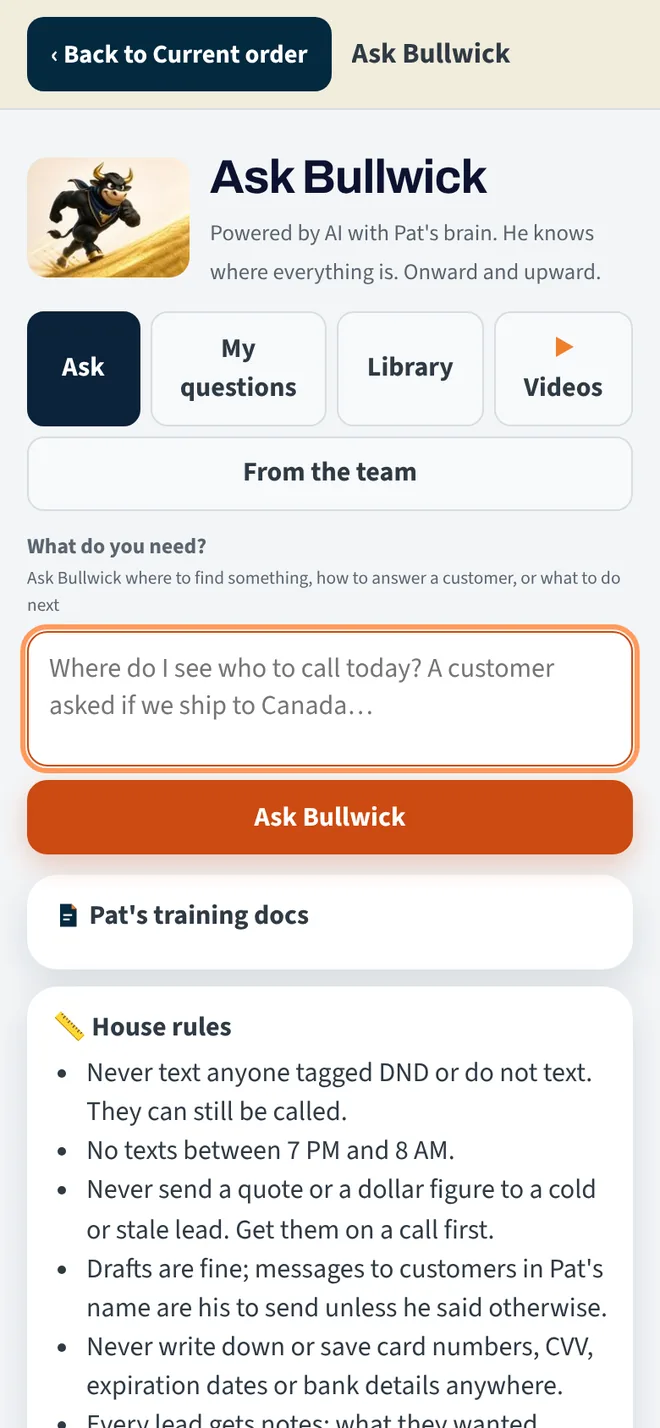
Tap the bull at the bottom left on any screen. Ask where a button is ("how do I connect Gmail?"), what to say to a customer, or hand him a job: "quote 40 tumblers for Northwind". He answers in plain words and takes you to the right screen.
Your plan and trials
Bullpen starts free. The paid plans are on the pricing page: pay by the month, or pay the year and get one month free (the same price every year).
If an upgrade was turned on for you before you paid, it runs on a trial timer, 30 to 90 days. A thin line at the top of the app shows when it ends. When the timer runs out nothing closes: your account goes back to the plan it had, everything you put in stays, and the parts that came with the upgrade show a 🔒. Tap a locked part to ask for it back, or reply to any Bullpen email.
You get an email a week before the trial ends and one on the day.
Your data
Your leads, customers and orders are yours. Nobody outside your company sees them, Bullpen's founder included. Download them whenever you like.
The same goes for what you upload: your logo, your price list, your photos and the names you use are yours and your responsibility. Bullpen supplies no brand's materials, so only bring in what you have the right to use. The Terms say how complaints are handled.
- Download your leads, deals, notes and appointments: Menu › CRM setup › the Download anytime links. Each one is a file that opens in any spreadsheet.
- Back up everything on this phone: Menu › Back up my data saves a file you can keep.
- Close your account: reply to any Bullpen email and ask. Your data is deleted and you get a confirmation.
- Your signed agreement: the user agreement you signed when you joined is under Menu › Profile and settings › Your signed agreement, as a file you can keep.
Free accounts that go quiet
On the Free plan, if nobody logs in for a while Bullpen checks in and then tidies up. Any login resets the clock.
| Quiet for | What happens |
|---|---|
| 30 days | An email from Bullwick with your numbers and a login button |
| 60 days | A second email, with how to download everything |
| 90 days | The account goes to sleep. Logging in wakes it, nothing is lost |
| 150 and 173 days | Two last warnings |
| 180 days | The data is deleted. Only your email and the date are kept for 30 more days, so a reply gets a straight answer |
Paid accounts are never touched this way. The Privacy Policy has the full picture.
Questions people ask
Do I need a CRM?
No. Pick No CRM: keep them in Bullpen under Menu › CRM setup and everything lives in Bullpen. You can download it any time, and switch to GoHighLevel later without losing anything.
What does Bullpen do with my Google account?
Three things, only when you ask: send the emails you tap Send on from your Gmail (and read the thread so replies show up on the person's page), add appointments you book to your Google Calendar, and make a folder in your Drive for each order. It never sends on its own, never reads mail you didn't open in Bullpen, and you can disconnect under My connections at any moment.
Will it text or email my customers without me?
No. Every text and email is a draft until you tap Send. Texts open your own messaging app with the words typed in. Follow up reminders are for you, not messages to them.
Our reps write leads on paper. Does that work?
Yes. Take one photo of each filled in lead sheet (Lead Capture › From photos, or the camera). The handwriting is read into a lead, notes and all, and it lands on Follow Up like any card.
No signal at the show?
Keep working. Leads and orders save on the phone and send when signal comes back. The icon on your home screen opens even offline.
Can my teammates see my leads?
Everyone in your company shares the same Bullpen, so yes, with access levels: Managers see everything, Callers see calls and follow ups, Reps see their own work. Nobody outside your company sees anything.
How do I change the look of my invoices?
Menu › Your company › Invoice and quote look: Classic, Bold, Modern, Stripe or Simple. The previews use your own logo and colors. Save and every new quote and invoice uses it.
I forgot my password.
On the login page tap Forgot your password? and type your email. A branded email with a reset link arrives within a minute. Check spam if you don't see it.
What's included on the Free plan?
One login, card and lead sheet capture, Who's next and follow up reminders, with 15 scans and 5 AI follow ups a month. Everything else is on the pricing section, and you can move up any time.
Something isn't working.
Open the app and tap Ask Bullwick, then Check my connections under Menu: it tests Google and your CRM with a real call and says exactly what's wrong. Still stuck? Reply to any Bullpen email and a person answers.